


1XROLL Download Page
Table of Content
- Access the 1XROLL Download Experience
- 1XROLL Android Download Steps
- 1XROLL iOS Download Steps
- 1XROLL Desktop Download Steps for Windows
- 1XROLL Desktop Download Steps for macOS
- Benefits of Using 1XROLL App Shortcuts
- Account Safety and Device Recommendations
- Frequently Asked Questions
Access the 1XROLL Download Experience
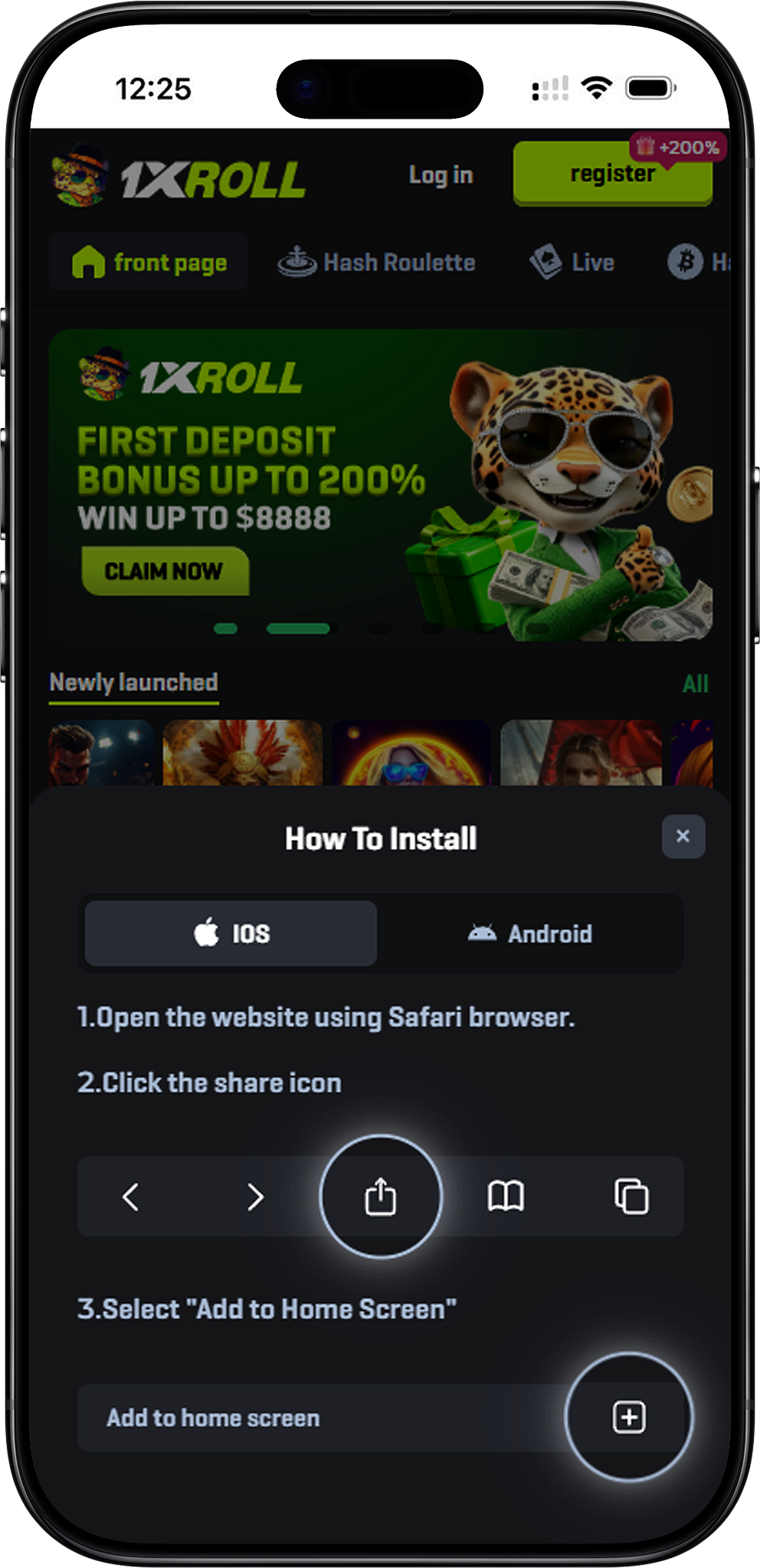
The 1XROLL Download page helps users access the platform more easily through Android, iOS, APK, App, and Desktop shortcut methods. While the official 1XROLL App is still coming soon, users can create browser-based shortcuts that work similarly to an installed application experience. Users may also access the platform directly through https://1xrollofficial.my.
1XROLL Android Download Steps
Android Step 1: Open Chrome on Your Android Device
Start by opening the Chrome browser on your Android smartphone or tablet before creating the shortcut.
Android Step 2: Visit the Platform Website
Enter the platform website address in Chrome and wait for the page to load fully before continuing with the setup process.
Android Step 3: Open the Browser Menu
Tap the three-dot menu icon located in the top-right corner of Chrome to access additional browser options.
Android Step 4: Select Add to Home Screen
Choose the “Add to Home screen” option and enter a shortcut name such as 1XROLL before confirming the setup.
Android Step 5: Launch the Shortcut Easily
After confirmation, the shortcut icon will appear on the Android home screen for quicker future access to platform features.
Android Shortcut Note
Some Android devices may display “Install app” instead of “Add to Home screen.” Users may refresh the page or temporarily switch to Airplane Mode if the shortcut option behaves differently.
1XROLL iOS Download Steps
iOS Step 1: Open Safari Browser
The 1XROLL iOS shortcut setup works through Safari, so users should begin with Safari instead of other mobile browsers.
iOS Step 2: Open the Platform Website
Visit the platform website in Safari and allow the page to finish loading before continuing with the shortcut process.
iOS Step 3: Tap the Share Button
Select the Share icon located at the bottom of Safari to view additional browser and shortcut options.
iOS Step 4: Choose Add to Home Screen
Tap “Add to Home Screen” and customize the shortcut name before saving it to the device.
iOS Step 5: Open the Shortcut From Your Home Screen
The shortcut icon will appear on the iPhone or iPad home screen for easier future platform access.
1XROLL Desktop Download Steps for Windows
Windows Step 1: Create a Drag and Drop Shortcut
Open Chrome, Edge, or Firefox and drag the lock icon from the browser address bar directly to the Desktop to create a quick-access shortcut.
Windows Step 2: Use Chrome Shortcut Tools
Chrome users can open the browser menu, select “More Tools,” and choose “Create Shortcut” to generate a Desktop icon for the platform.
Windows Step 3: Install the Website as an Edge App
Microsoft Edge users may open the Apps section from the browser menu and select “Install this site as an app” for an app-style browsing experience.
Windows Step 4: Create a Manual Desktop Shortcut
Users may also right-click the Desktop, select “New Shortcut,” paste the website address, and complete the manual shortcut setup process.
1XROLL Desktop Download Steps for macOS
macOS Step 1: Use Safari to Create a Shortcut
Safari users on macOS can drag the website URL or lock icon from the address bar to the Desktop to create a shortcut file.
macOS Step 2: Use Chrome Shortcut Features
Chrome on macOS supports the “Create Shortcut” feature through the browser tools menu, allowing users to add a quick-access icon to the Desktop.
macOS Step 3: Customize the Desktop Icon
Users may personalize the shortcut appearance by opening shortcut information settings and replacing the icon preview image.
Benefits of Using 1XROLL App Shortcuts
Faster Access Across Devices
The browser shortcut method allows users to access the platform more quickly without manually typing the website address every time.
Easier Navigation to Promotions and Games
Users can quickly visit Games, Lottery, and Activity Center after opening their shortcut icon.
Convenient Access to Rewards Features
Shortcut access may help users stay updated with Rewards Center promotions such as VIP Weekly Bonus and VIP Cashback Rewards.
Account Safety and Device Recommendations
Use Personal Devices for Account Access
Users should only save login details and shortcuts on trusted personal devices to help improve account security and privacy protection.
Review Responsible Platform Information
Before accessing account features, users are encouraged to review Responsible Gaming and Fair Play for platform guidelines and safer participation information.
Learn More About Browser Security
Users interested in improving browser and online safety practices may review Google Safety Center for additional digital security information.
Frequently Asked Questions
Is the official 1XROLL App available now?
The official 1XROLL App is currently coming soon, but users can still create browser shortcuts for Android, iOS, and Desktop access.
Can users install the 1XROLL APK directly?
The official 1XROLL APK release is not publicly available yet. Users should only access platform shortcuts through trusted and official sources.
Does the 1XROLL Desktop shortcut work on Windows and macOS?
Yes, browser-based shortcut methods are available for both Windows and macOS devices.
Can iPhone users add the website to the home screen?
Yes, iPhone and iPad users can use Safari to add the platform shortcut directly to the home screen.
Where can users create an account before using shortcut access?
New users can register through Register, while returning users may continue through Login.
Start the 1XROLL Download Access Setup
Follow the Android, iOS, APK, App, and Desktop shortcut instructions to enjoy quicker and more convenient access across your devices.